With my “blueprints” posts, I’d like to share recipes for building better software. In this first installment my goal is to introduce you to a continuous integration environment by walking you through the steps to set up your own. While following along, use your best judgement in deviating from the tutorial. For example, if you’re using another language besides Ruby in your project you might want to seek out and incorporate the preferred unit-test framework for that language (although Cucumber can also be used to test .NET, Java and ActionScript/Flex code). This exercise takes about 30 minutes to run through.
The players:
Hudson – An extensible continuous integration engine
Git – Fast version control system
Gitosis – Easier and safer repository hosting
Merb – Lean and mean Ruby web app framework
Cucumber – Execute feature documentation (stories) in plain text
The Setup:
Fresh Ubuntu 8.10 server install. I’m running mine on Amazon’s EC2 using Alestic’s public ami-7806e211, but you should be just fine following with a local server if you’re not on the cloud yet.
Step 0: Pre-installation
It’s a good idea to update our packages before getting started:
apt-get -y update && apt-get -y upgrade
Step 1: Install Java, Apache and Tomcat
Hudson is a Java web application that plays nicely with Apache 2.2 and Tomcat 6. First we’ll install Java, here’s how to get it going:
apt-get -y install sun-java6-jdk
You’ll have to accept Sun’s license agreement during the Java install, but it’s pretty painless.
Then we can just:
apt-get -y install apache2 tomcat6
If you try to install all three packages at the same time, tomcat may not start properly. YMMV.
Step 2: Convince Tomcat that it wants to run behind Apache, and prepare it for Hudson
Now we need to configure Apache and Tomcat to communicate with each other over Apache’s binary AJP protocol. We also need to prepare Tomcat for our Hudson install. This is pretty boring and labor-intensive stuff, so instead of walking you through the specifics, I’m going to just publish my config files and have you use wget to overwrite yours with them. If you want to see what I’ve modified then you can always backup your copies and diff them against mine.
wget http://pastie.org/pastes/315473/download -O /etc/tomcat6/context.xml
wget http://pastie.org/pastes/315475/download -O /etc/default/tomcat6
wget http://pastie.org/pastes/316125/download -O /etc/apache2/apache2.conf
wget http://pastie.org/pastes/318217/download -O /etc/init.d/tomcat6
Now let’s create a directory for hudson to live in and restart Tomcat.
mkdir /srv/hudson
chown tomcat6.tomcat6 /srv/hudson
/etc/init.d/tomcat6 restart
/etc/init.d/apache2 restart
Step 3: Install Hudson
This step is pretty painless, we just grab the latest version of Hudson and move it to Tomcat’s web app directory.
wget http://hudson.gotdns.com/latest/hudson.war
chown tomcat6.tomcat6 hudson.war
mv hudson.war /var/lib/tomcat6/webapps/
Don’t worry, Tomcat will load it and set it up automatically. At this point you should be able to access Hudson’s control panel. Aim your browser at http://yourhost/hudson/ and have a look around.
Step 4: Install Git and Gitosis
The Git version control system seems to be the hacker’s choice these days. We’ll grab the Git toolset itself as well as Gitosis which will allow us to manage users and public or private repositories.
apt-get -y install git-core python-setuptools
git clone git://eagain.net/gitosis.git
cd gitosis
python setup.py install
adduser --system --shell /bin/sh --gecos 'git user' --group --disabled-password --home /srv/git git
cd ..
Now we need to generate a SSH key to manage Gitosis with. This way you can add the private key to your keychain and manage gitosis from any machine you like. Use a passphrase, or don’t, it’s up to you. Then let’s run ssh-agent and add the new key.
ssh-keygen -t rsa
# ...
ssh-agent /bin/bash
ssh-add ~/.ssh/id_rsa
Finally, let’s initialize Gitosis now that we have our key:
sudo -H -u git gitosis-init <~/.ssh/id_rsa.pub [/sourcecode] We also need to make sure the post-update script has the proper permissions to execute so that our changes to the configuration take effect after we push them. Here's how: [sourcecode language="php"] chmod 755 /srv/git/repositories/gitosis-admin.git/hooks/post-update [/sourcecode] While we're on the subject, let's add Tomcat's user account (tomcat6) to the git group so that it can clone repositories off of the local filesystem. [sourcecode language='php'] usermod -G git tomcat6 [/sourcecode] <strong>Step 5: Install Merb</strong> apt-get -y install ruby-full libsqlite3-dev libxml-ruby libxslt-dev libxslt-ruby wget http://rubyforge.org/frs/download.php/45905/rubygems-1.3.1.tgz tar -zxvf rubygems-1.3.1.tgz cd rubygems-1.3.1 ruby setup.rb ln -s /usr/bin/gem1.8 /usr/bin/gem cd .. gem install merb
Step 6: Start the project and manage it with Git
Now the real fun begins. The whole point of this exercise of course is to build our killer robots in the most efficient way possible. So let’s generate a new Merb application and get it under version control.
merb-gen app robot
cd robot
git init
git add .
git commit -a -m "Initial import."
cd ..
Now let’s create a repository in Gitosis for it. You can do this step on any machine, it doesn’t need to be the server — just make sure you’ve added your private key from Step 4 with ssh-add first.
git clone git@yourhost:gitosis-admin.git
Now open gitosis-admin/gitosis.conf in your favorite editor and add a group and make a new repository writable for our project. Here’s what mine looks like:
[gitosis]

[group gitosis-admin]
writable = gitosis-admin
members = rboyd@plato

[group robot-dev]
writable = robot
members = rboyd@plato
Now commit that, and push — your new repository should be ready. Run this from the gitosis-admin directory:
git commit -a -m "Adding robot repository."
git push
Now let’s get back into our robot directory and push our repository to Gitosis.
git remote add origin git@localhost:robot.git
git push origin master:refs/heads/master
cd ..
Step 7: Install Cucumber
gem install webrat  # dependency for cucumber
git clone git://github.com/david/merb_cucumber.git
cd merb_cucumber/
rake install
Now we can get Cucumber setup and working in our Merb app:
cd robot
merb-gen cucumber
As anyone who’s tried to take over the world before knows, automation is key. The most important part of building an army of killer robots is to make sure that your robots know how to self-assemble new killer robots. Otherwise you’ll be bogged down building them all by yourself. Let’s spec it out. Create a file features/replicate.feature in your robot directory. Make it look like this:
# replicate.feature
Feature: Replicate
  In order to take over the world
  Robots should be able to


  find parts and self-replicate

Scenario: Find parts
  Given that there are parts available
  And that the Robot needs parts
  Then it should take any that it needs

Scenario: Self-replicate
  Given that the Robot has all of the needed parts
  Then it should be able to build a new Robot
You can run your Cucumber stories with the command rake features. We don’t have these steps implemented yet though, so let’s create them in features/steps/robot_steps.rb:
require 'spec'
class Robot
def initialize
@backpack = []
end
attr_accessor :backpack
def take_from!(parts)
parts.each { |p| backpack << p }
end
def needs?(parts)
true
end
def can_replicate?
true
end
def build!
backpack = []
return Robot.new
end
end
Before do
@robot = Robot.new
end
Given /^that there are parts available$/ do
@available_parts = []
@available_parts << {:type => :leg}
@available_parts << {:type => :leg}
@available_parts << {:type => :brain}
@available_parts << {:type => :chainsaw}
end
Given /^that the Robot needs parts$/ do
@robot.needs?(@available_parts).should be_true
end
Then /^it should take any that it needs$/ do
before = @robot.backpack.length
@robot.take_from!(@available_parts)
@robot.backpack.length.should be > before
end
Given /^that the Robot has all of the needed parts$/ do
@robot.can_replicate?.should be_true
end
Then /^it should be able to build a new Robot$/ do
@new_robot = @robot.build!
@new_robot.class.name.should == "Robot"
end
Now when you run rake features you get the results you’d expect. All green! Good. Now we’ll want to commit our changes to the repository, but before we do, let’s get Hudson setup to kick off our tests as soon as it gets our latest changes. This is what continuous integration is all about.
Step 8: Wire everything up
First we need to add the Git plugin to Hudson. Fire up the browser again and aim it at http://yourhost/hudson/pluginManager/available — then click the checkbox next to the Git Plugin. Let’s add the Rake Plugin while we’re at it. Then click the Install button at the bottom of the page.
Hudson tells us “Once the installation is completed, Hudson needs to be restarted for changes to take effect.” so let’s do that again:
/etc/init.d/tomcat6 restart
/etc/init.d/apache2 restart
Hudson likes to tag revisions from Git with its build number. But it needs a .gitconfig with user and email settings before git will allow this. So let’s drop this file in /srv/hudson/.gitconfig:
[user]
    name = Hudson
    email = hudson@yourhost
Ensure that it’s owned by the proper user:
chown tomcat6.tomcat6 /srv/hudson/.gitconfig
Now let’s enable security for Hudson. Click Manage Hudson then Configure System. For now, make it look like this:

Now you should be able to create new users by clicking the sign up link in the top-right corner. Create two, one for yourself (I’ll call mine admin) and one for Gitosis (gitosis) to use to trigger builds automatically upon updates to the repository. Once these user accounts are created, login and head back to Configure System switch over to Project-based Matrix Authorization Strategy and remove all privileges for Anonymous (this is a good idea because Hudson comes with a Groovy script interpreter on by default which is a potential security vulnerability), and add all privileges for your admin account. Your gitosis account can get away with only Read and Build permissions. Here’s how it looks:

Now we’re ready to crate a New Job. Name it robot and select Build a free-style software project, then click OK.
On the project configuration page you tell Hudson how to fetch and execute any build steps for the project. We’ll configure it to grab the robot.git repository from the local filesystem (bypassing gitosis altogether). We’ll also enable the checkbox for Trigger builds remotely.

We’re almost done, now we just need to tell Hudson to kick off a rake features after grabbing updates. Click the Add build step drop-down menu and select Invoke Rake and just type features into the Tasks input box.
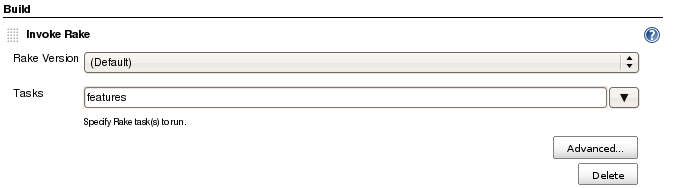
Now let’s set Gitosis up to trigger your build upon code checkin. Add this line to /srv/git/repositories/robot.git/hooks/post-receive, replace pass and secret with whatever you used for the gitosis user password and the build trigger token:
/usr/bin/curl -u gitosis:pass http://localhost/hudson/job/robot/build?token=secret
Then set file permissions on post-receive and post-update:
chmod 755 /srv/git/repositories/robot.git/hooks/post-update
chmod 755 /srv/git/repositories/robot.git/hooks/post-receive
That’s it. Now Gitosis and Hudson should play nicely together to automatically kick off builds and run your tests whenever you add new code to your project.
Step 9: Check in your code
Back in our robot project directory, we still have our Cucumber test code that we haven’t added yet. Run git status to see these new files. Let’s commit our changes and push it to Gitosis and watch Hudson run the build:
git add .
git commit -a -m "Adding tests."
git push
Now just sit back and watch the build progress on the job page (maybe check out the console output) and prepare for world domination!


 Software Bloat